ERP Systems
Introducing Prokar: Sales, Inventory and Business Operations, Connected
By Admin Tenant 1 ·
Explore Prokar on Codeniza: a connected workspace for sales, POS, inventory, purchasing and reporting, with staff demo accounts and a separate client portal.

A customer is waiting at the counter. A colleague is checking whether an item is available. Another person is preparing a supplier order, while the manager wants to understand the day's sales. These are separate jobs, but they depend on the same business records.
Prokar brings sales, point of sale, products, inventory, purchasing, expenses and reporting into one workspace. The Codeniza demo makes that connection tangible: visitors can explore a populated business, compare staff roles and open a separate client portal. The goal is practical: make the next operational question easier to answer.
Explore the live Prokar demo →
Start with the business, then follow the detail
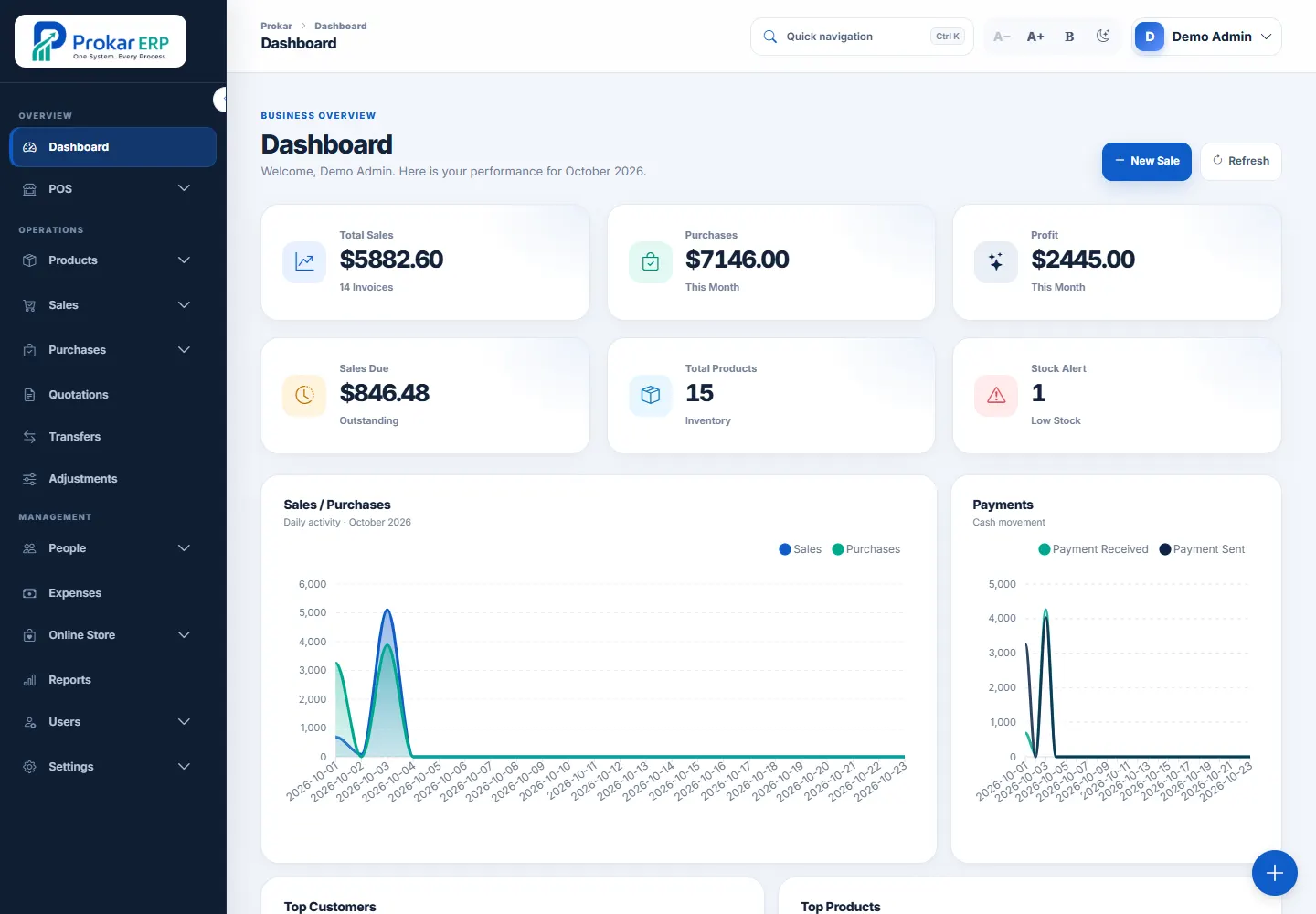
The dashboard gives an overview of sales, purchases, outstanding sales balances, product totals and stock alerts. Charts add context through sales and purchasing activity, payments, customers, products and stock value. Recent sales sit alongside these summaries, so the overview has a clear connection to individual records.
A useful first question is simple: what needs attention? An outstanding balance may lead to a customer transaction. A low-stock alert may lead to a product or purchasing decision. The dashboard helps staff choose where to investigate rather than presenting a list of disconnected numbers. The figures in the demo and screenshots are sample data, not reported business results.
Keep selling close to the customer record
Prokar includes dedicated areas for point of sale, sales and quotations. This gives teams room for both a counter transaction and a more considered sales process. A cashier can focus on the selling task, while authorized staff can review invoices, customers and recorded payment status from the wider workspace.
Recording a sale is only one part of the work. Staff also need to understand what was sold, which customer it belongs to, which warehouse is involved and whether an amount remains due. Keeping those details within the business system helps the next person continue the conversation with the relevant record in view.
Give the product catalogue an operational purpose
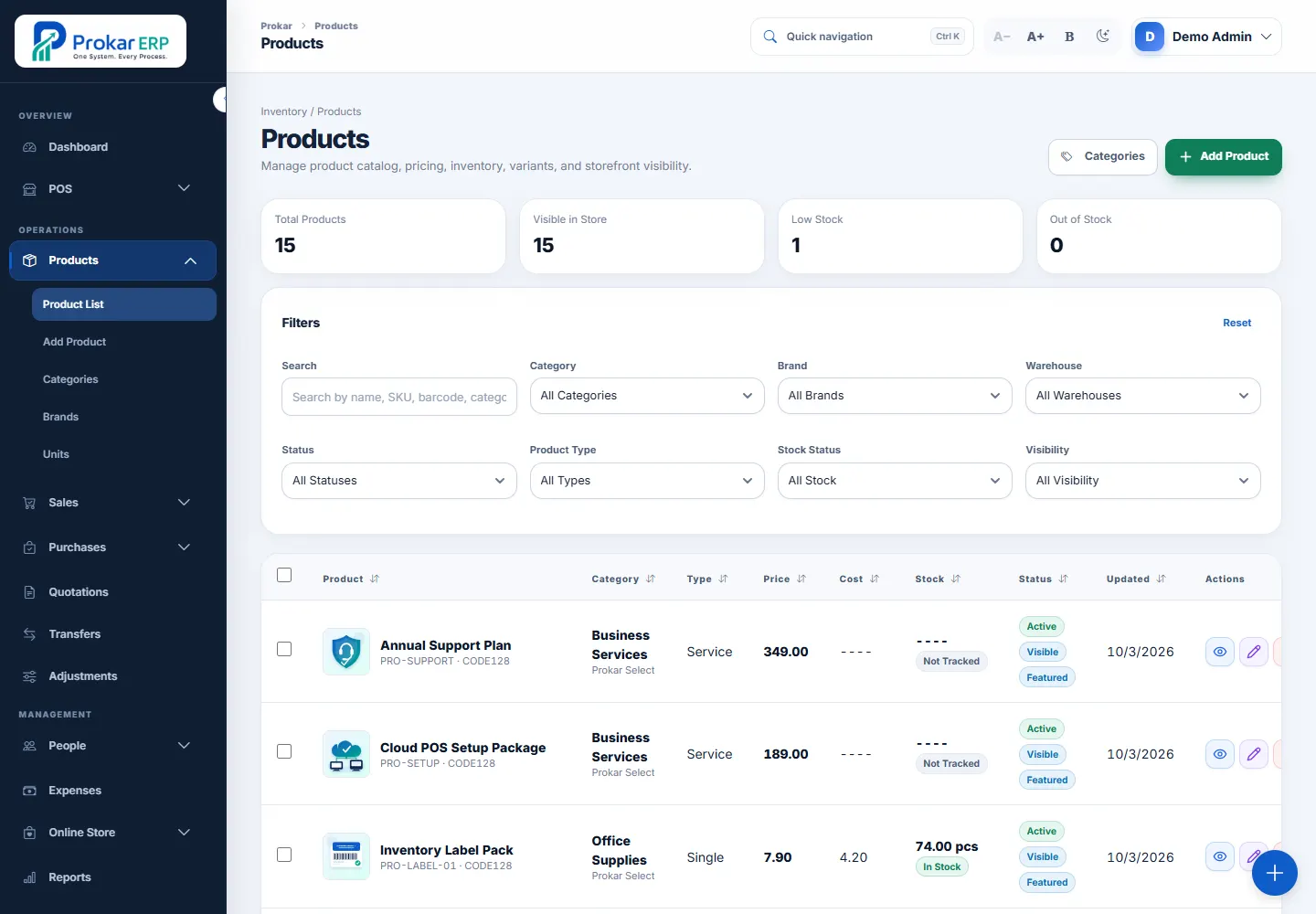
The product screen combines catalogue details with pricing, inventory, variants and storefront visibility. Staff can search by product name, SKU, barcode, category, brand or variant, then narrow the list by warehouse, status, product type, stock status or visibility. This makes the catalogue useful when the question is specific: find the item, check its status and understand its stock position.
Products are not all alike. The interface distinguishes single products, variable products, services and combinations. Categories, brands and units provide additional structure. Transfers and adjustments have their own areas, reflecting the fact that moving stock between locations is a different operational event from correcting a stock record.
Bring purchasing and expenses into the same working picture
Sales create one view of activity; purchasing and expenses add the other side. Prokar provides purchasing, supplier and expense workflows alongside the product and sales areas. Teams can review incoming business activity without treating it as a separate set of documents outside the main workspace.
For a first visit, compare a sample sale with a sample purchase and then look at the dashboard again. Notice which details belong to a transaction and which belong to the overall view. This is a more useful way to evaluate operational software than judging a dashboard in isolation.
Different people need different ways into the work
The public login page presents an administrator account and employee examples for a cashier and an inventory manager. Role buttons fill the normal sign-in form, making it easier to compare the experience from more than one starting point. The administrator view shows the wider workspace; the employee examples provide a more focused way to explore everyday responsibilities.
There is also a client-portal entry point, with separate sample client credentials displayed on the login page. This introduces another perspective on the business: a customer-facing area alongside the staff workspace. Visitors can follow the portal link directly from the demo introduction.
A useful first tour of Prokar
- Open the demo login. Choose a staff role using the credentials displayed there.
- Review the dashboard. Look at sales, purchases, outstanding balances and stock alerts.
- Open Products. Try search and warehouse or stock filters, then inspect the sample catalogue.
- Follow a transaction. Compare sales, purchases and the reports available to the selected role.
- Compare another perspective. Return to the login page to try an employee example or follow the client-portal link.
Prokar is available to explore with sample business data. It is a shared demonstration, so records may change as visitors use it. Use the demo to assess how the screens, roles and workflows fit the way your team works, then discuss the configuration and operational requirements of a real deployment with Codeniza.
Open Prokar: sales, inventory and business operations in one workspace →