Clinic Management
Clinic Management Software in Jordan: A Practical Demo Checklist
By Admin Tenant 1 ·
Test a clinic system with a complete patient journey: booking, reception, clinical records, payment, permissions, and recovery after an internet interruption.
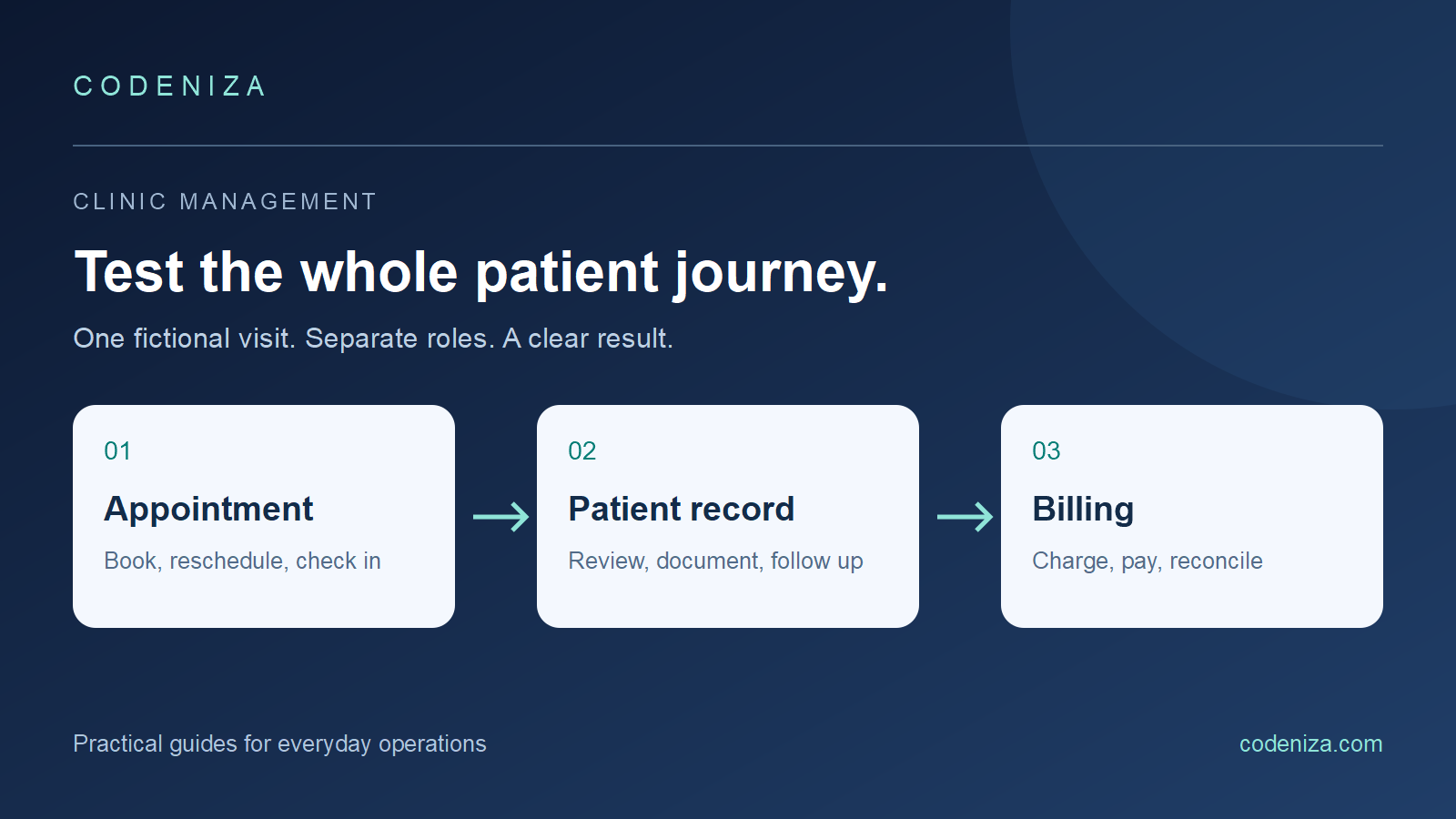
A clinic software demonstration should answer one question: can your team complete an ordinary working day without losing track of a patient, an appointment, or a payment? A polished dashboard cannot answer that on its own. The useful test is a connected journey through reception, the consultation, billing, and the next visit.
For clinics evaluating software in Jordan, Arabic screens, English medical terminology, branch access, and connection reliability are practical concerns worth testing directly. This checklist is a suggested evaluation exercise, rather than a claim that every clinic needs the same configuration.
Start with one fictional patient and one ordinary appointment
Ask the demonstrator to create “Demo Patient 001” while you watch. Record the minimum details your reception team normally needs. Then search for the patient by the record number and another supported identifier. Try entering the same fictional details again and observe how the system warns about possible duplicates.
Book a visit with a named demo doctor in a specific branch. Move it to a different time, cancel it, and book it again. Check whether the appointment history remains understandable. If the clinic uses different visit lengths, ask to schedule a consultation and a longer procedure rather than accepting one default calendar slot.
Follow the patient across roles
- Reception: confirm the appointment, check in the patient, and find their place in the waiting queue.
- Doctor: open the correct clinical record and document a fictional consultation. Inspect how previous notes and prescriptions are presented.
- Cashier: create the appropriate charge, record a payment, and explain any remaining balance.
- Clinic manager: find the visit in a report and identify who performed each relevant action.
Use separate accounts for the exercise. A demonstration conducted entirely through an administrator account can hide a permission problem that only appears when the receptionist starts using the system. Where a task is intentionally restricted, the interface should explain what the person can do next.
Check Arabic and English with realistic content
Switch the interface language on a patient page, a calendar, and an invoice. Inspect right-to-left layout, mixed Arabic and English text, date presentation, and printed output. A translated sign-in page is useful, but it does not establish that the rest of the working day is comfortable in Arabic.
Ask a receptionist and a doctor to perform the same task independently. Note the steps they need help with. These observations provide a more useful training plan than simply asking whether the software is “easy to use.”
Test an internet interruption as a separate scenario
First clarify what the vendor means by offline support: opening a previously viewed screen, searching local records, or creating work that synchronizes later. These are different capabilities. Service workers can support offline experiences, but their availability does not automatically make every operation offline-capable; MDN explains the distinction between cached content and background work.
With fictional data and an approved test device, enroll or prepare the workspace as required, disconnect the network, and perform one supported task. Close and reopen the application, reconnect, and inspect the synchronization result. Ask what happens when two people edit the same record, the device storage is cleared, or the device is lost. Record any tasks that require an active connection.
Ask about billing without assuming regulatory approval
Test a normal payment, a partial payment, and the supported correction process using fictional amounts. Check that the receipt, outstanding balance, and manager's report describe the same event. For a multi-branch clinic, confirm that access and reporting follow the selected branch.
If electronic invoicing is part of your requirements, ask the vendor to show the provider configuration, submission status, failure handling, and onboarding steps separately. An ordinary invoice screen does not establish that a clinic is connected to a live fiscal service. Confirm applicable requirements with the relevant authority or your adviser before using any product for live submissions.
Use a short acceptance sheet
| Scenario | Evidence to request | Who checks it? |
|---|---|---|
| Appointment changes | Booking and rescheduling history | Reception |
| Clinical access | Doctor and reception views using separate accounts | Doctor and manager |
| Payment handling | Receipt and remaining balance agree | Cashier |
| Interrupted connection | Supported local task and visible sync result | Daily users |
| Leaving the system | Sample export, format, and restore explanation | Clinic manager |
For each row, record pass, needs configuration, or not available. Ask for the responsible person and the next action wherever configuration is needed. Keep pricing, migration, training, support hours, and backup responsibilities in the same decision record, even when they are supplied in separate commercial documents.
Try this journey in the Ashal demo
Open the Ashal clinic management demo and select one of the role accounts shown on the login page. The shared password is displayed there. Explore reception, appointments, patient records, and billing with anonymous fictional records. Device enrollment may ask you to choose a local PIN before using the offline workspace.
The public demo is shared and uses test data and simulated external providers. Enter fictional information only. A production setup requires its own configuration, migration plan, and operational checks. If your team has a specific branch structure or workflow, send Codeniza a short description of the working day you need to support.
Common questions
Is a mobile-friendly clinic system enough?
It may be enough for some roles. Test the actual device, keyboard, printer, and network used for the task rather than treating screen size as the whole requirement.
Should every employee have administrator access?
Start with the tasks each role needs. Use the demo to check that the receptionist, doctor, cashier, and manager can complete those tasks with appropriate access.
Can I judge offline support by opening the app with Wi-Fi disabled?
That checks only part of the experience. Also test the preparation step, a supported change, reopening, reconnection, and the visible result of synchronization.